
Change, extend or cancel a booking
Confirm, extend, swap the vehicle, send a pay link, assign a car to a pooled booking, add extra charges, or cancel — all from the booking detail page.
Everything you do to an existing booking happens on its detail page — open it from the Calendar, the Bookings list, or a customer’s profile.
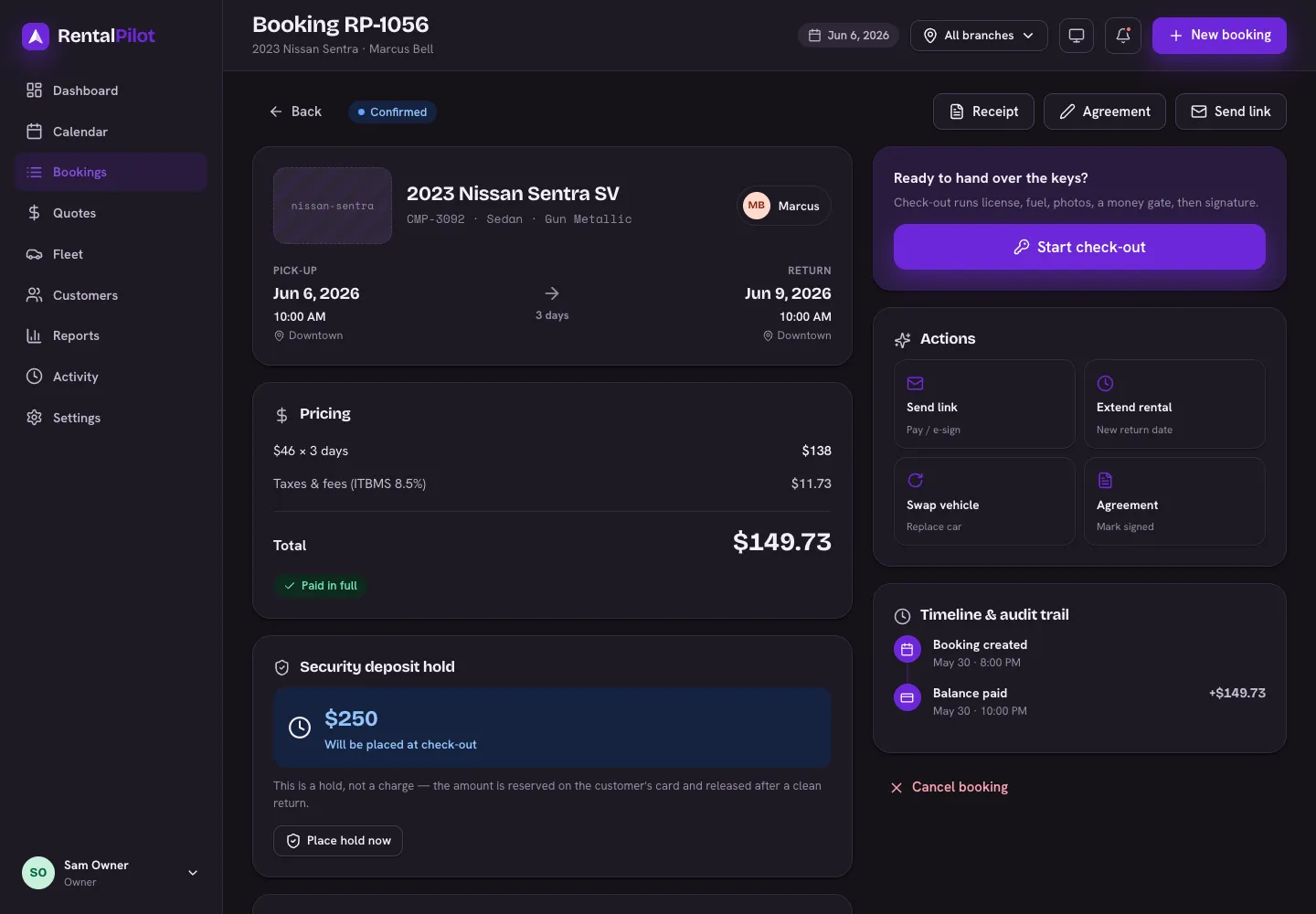
Confirm a pending booking
If you’ve set online bookings to need approval, new ones arrive as pending. Open the booking and choose Confirm booking to confirm the rental for the renter.
Extend a rental
Choose Extend rental, pick a new return date, and you’ll see the extra days and additional charge calculated live. You can charge the card on file or send a payment link for the difference.
For a booking with a per-day young-driver fee, added committed days use the rate and driver count saved when the booking was made; a flat young-driver fee is charged only once. Later changes to Settings do not change the booking’s saved young-driver terms.
If the rental has already auto-renewed, its paid renewal periods stay as billed. The additional charge covers the change to the committed rental term, and daily extras apply only to newly committed days. On bookings with a saved tax price, protection is also added for those new days; older bookings keep their previous protection amount. Flat extras and delivery or one-way fees remain one-time charges.
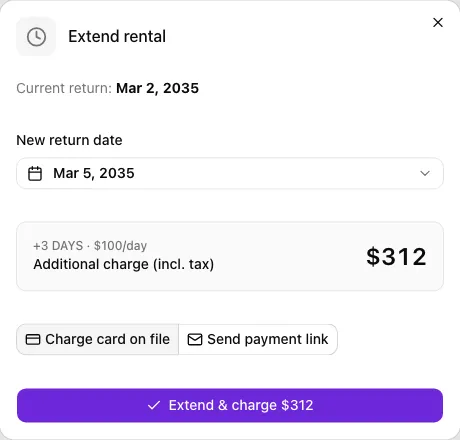
If a later date has no additional charge or the saved pricing needs review, the extension action stays unavailable. Choose a later date or review the pricing before extending.
Swap the vehicle
Choose Swap vehicle to review the current renter, car, dates, booking status and booked total. Select a replacement, then choose Swap & regenerate agreement. You can choose another vehicle class; the booking price and terms stay unchanged. Availability is checked when you confirm, and the agreement needs signing again after a successful swap.
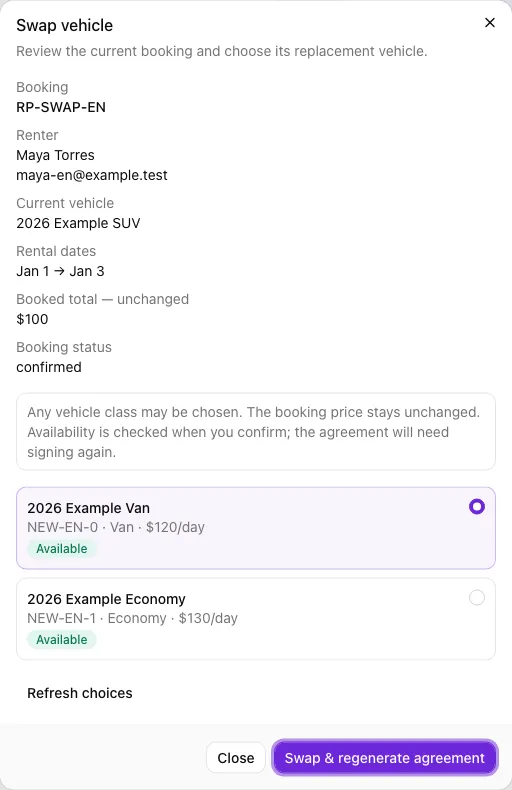
Use More choices or Previous choices to browse a large fleet. Every page change clears the selection. If the booking, car or permission changes, use Refresh choices, review the current details and select again. A swap is never retried automatically. If you switch booking or account, close and reopen the dialog. For a checked-out rental, you need access to both the current and replacement car’s branches. Returned or closed bookings keep the swap action disabled.
Assign a car to a class booking
If the booking was made by class (no specific car yet), open it and check the current renter, class, dates, price and pick-up/return places shown in the assignment card. Choose a vehicle from the list, check the Pick-up after assignment place, then choose Assign vehicle. A car must be assigned before you can check it out.
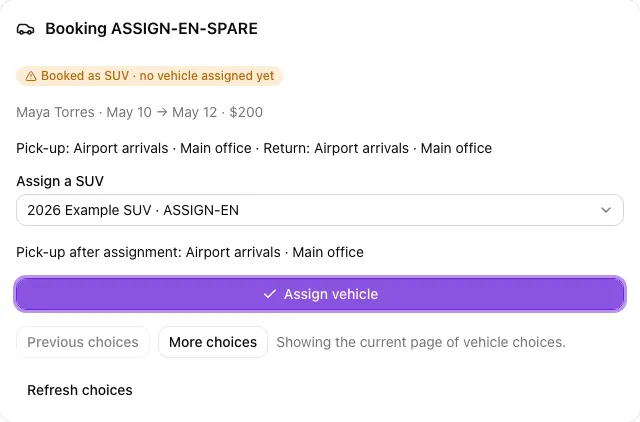
Use More choices or Previous choices to browse a large fleet. Each page loads current booking details and clears your selection, so choose again on the page you want to use. The list does not guarantee that a car is free for the booking dates; availability is checked when you assign it.
If the booking, vehicle or your access changed, choose Refresh choices, review the details and select a vehicle again. If the car is not free for those dates, select another vehicle. Assignment is not retried automatically. If the booking already has a car, choose Refresh booking details to see its current details.
Send a pay link
Choose Send link to email the customer a secure link to pay the balance — handy when they’re not in front of you. It’s minted only for a booking that still has something to pay.
There’s no separate link for signing: renters sign the agreement during checkout, and for an in-person rental the signature is captured at check-out.
Download the invoice or agreement
Use the Receipt / Invoice and Agreement buttons at the top of the page to open the PDFs (the invoice flips to a receipt once the booking is paid).
To record a signed agreement, choose Agreement in the Actions card. Record signed agreement shows the current renter, vehicle, dates, total and saved signing status. Review these details, then choose Mark agreement signed only after the renter has signed.
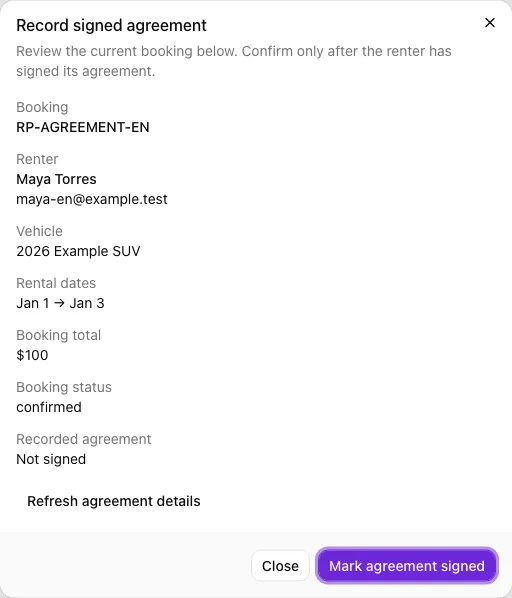
If the booking, renter or your access changed, use Refresh agreement details and review the new details before confirming again. If you switch to another booking or account while the dialog is open, close it and open the agreement again. Opening or refreshing the dialog does not mark anything signed.
Manage the deposit hold
The deposit section lets you place a hold, release it, or capture part of it for damage — holds reserve funds on the card and are released after a clean return.
Add a fine, toll or other charge
Under Extra charges you can bill a renter for something that came up after the rental — a parking fine, a toll, extra cleaning. Choose Add a charge, pick the type, and set the amount (plus an optional admin fee). You can charge the card on file straight away or just record it and send a pay link later. See Add a fine, toll or extra charge.
Cancel a booking
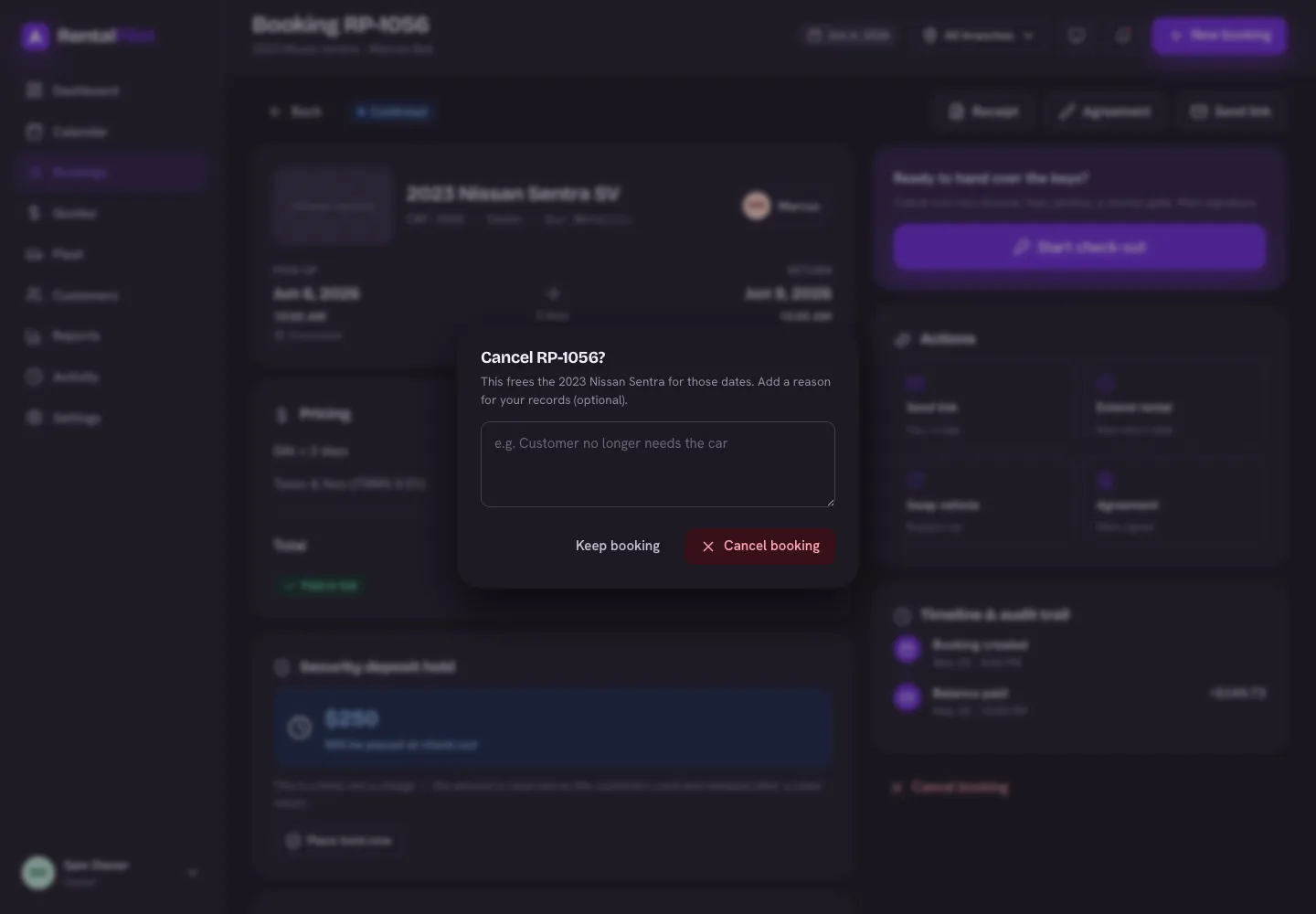
Choose Cancel booking, add an optional reason for your records, and confirm. This frees the vehicle for those dates and records the cancellation (with the reason) on the booking’s timeline and in your activity log.
Cancelling does not move any money. No refund is issued and no card is charged — the booking is simply closed out. If the customer is owed money back, refund them yourself: release or partially capture the deposit hold from the deposit section, and issue any rental refund from your Stripe dashboard. See Deposits & refunds.
The one case that refunds automatically is a customer cancelling their own booking from your booking site: in full before your late-cancellation window, or less your late-cancellation fee inside it. See What your customers can do themselves.
Need help with a specific booking? Contact us.