
Confirm your email when you sign up
New accounts are asked to confirm their email. Here's how to confirm — and what to do if the link expired.
When you create a RentalPilot account with the email-and-password fallback, we send a confirmation link to your email. Confirming proves the address is yours — it’s where password resets, billing receipts and booking notifications are sent.
If you sign up through WorkOS with Google or another available identity provider, that provider has already verified your email. RentalPilot therefore skips this confirmation step and takes you from the company-details page directly into business setup.
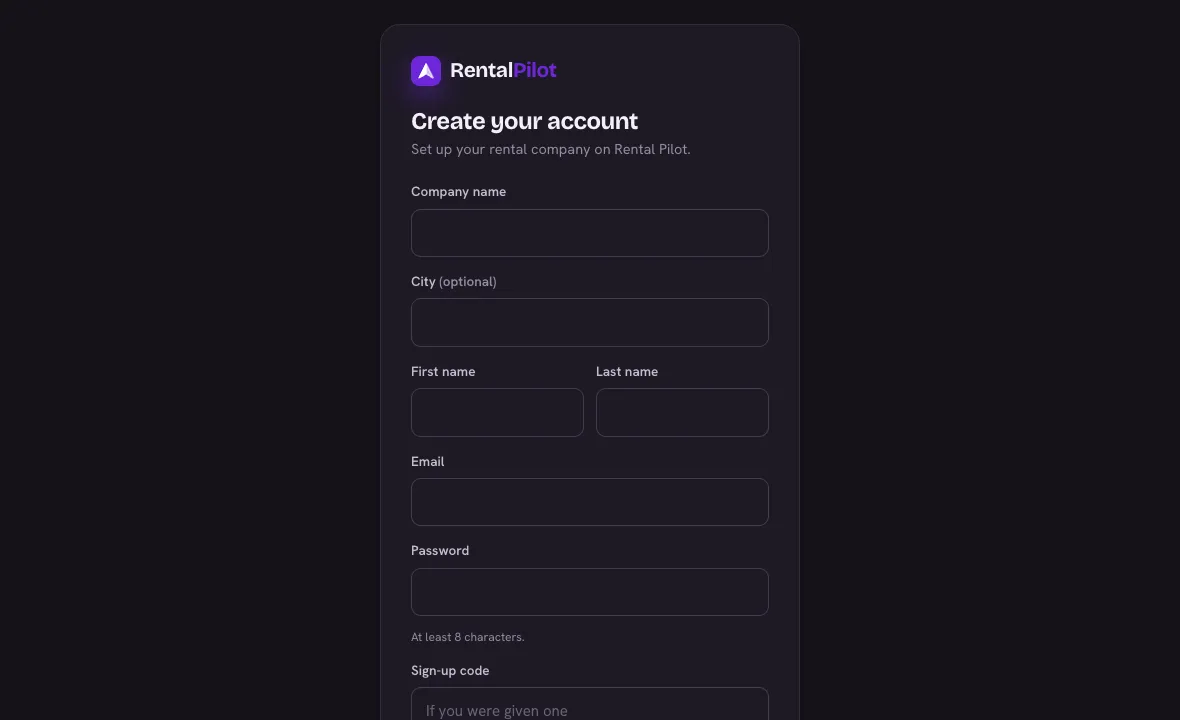
Confirm your account
- After signing up, check your inbox for “Confirm your email — RentalPilot.”
- Open it and choose Confirm your email.
- On the confirmation page, choose Confirm & continue — you’re signed straight in.
If you are already signed in, setup can continue before you confirm. A compact reminder stays above the current setup question without blocking its actions. Open the reminder to check the full address and explanation, or resend the confirmation email from the same row.
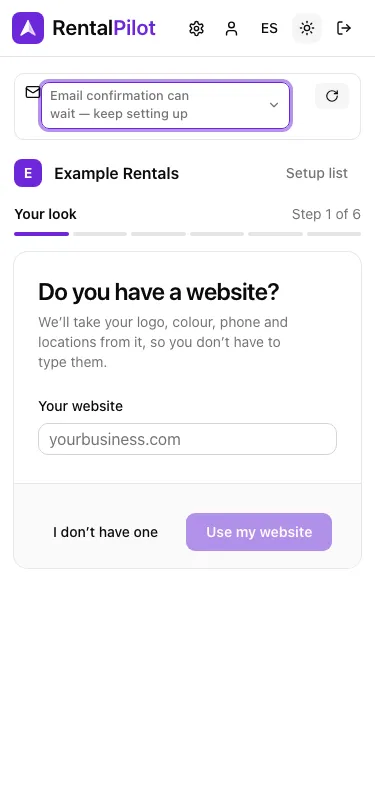
Didn’t get it, or the link expired?
- The link is valid for 24 hours. If it’s expired or you can’t find the email, choose Resend confirmation email from the reminder. RentalPilot confirms when the request was accepted; if it cannot request another email yet, the reminder stays available so you can try again later.
- Check your spam / junk folder.
Invited team members, and anyone who resets their password, confirm their email automatically — no extra step needed.
Need a hand? Contact us.