
Connect Stripe to get paid
Connect your own Stripe account so you can take card payments and deposit holds online, with separate card-payment and bank-payout status. No API keys to copy.
RentalPilot uses Stripe to take card payments and place refundable deposit holds. You connect your own Stripe account, so money from bookings goes into your Stripe balance and Stripe pays your bank according to your payout schedule — RentalPilot never holds your funds and takes no cut of your transactions.
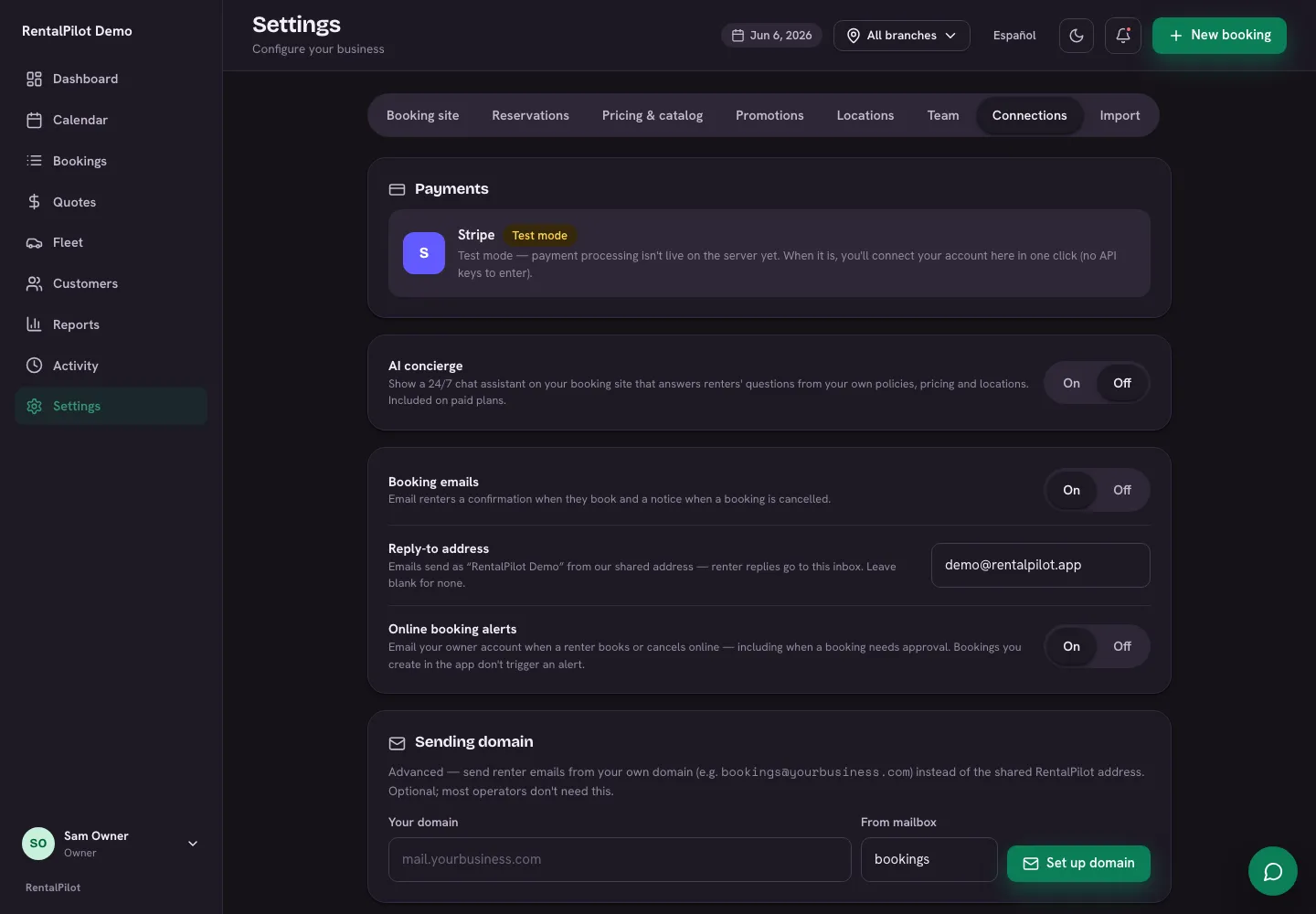
Connect your account
- Open Settings → Connections.
- Choose Connect with Stripe.
- You’ll be taken to Stripe’s own secure onboarding to enter your business details and the bank account where you want to be paid.
- When you’re done, Stripe sends you back to RentalPilot.
You never enter or copy any API keys — connecting is handled entirely through Stripe’s hosted flow.
When online payments turn on
After you finish onboarding, Stripe reviews your details and enables charges on your account (this is usually quick, but can take a little longer if Stripe needs more information). Once Stripe says you’re ready, online card payments switch on for your booking site automatically — there’s nothing else to flip.
You can check your status any time on Settings → Connections. Choose Check status to refresh it.
Card payments and bank payouts are separate
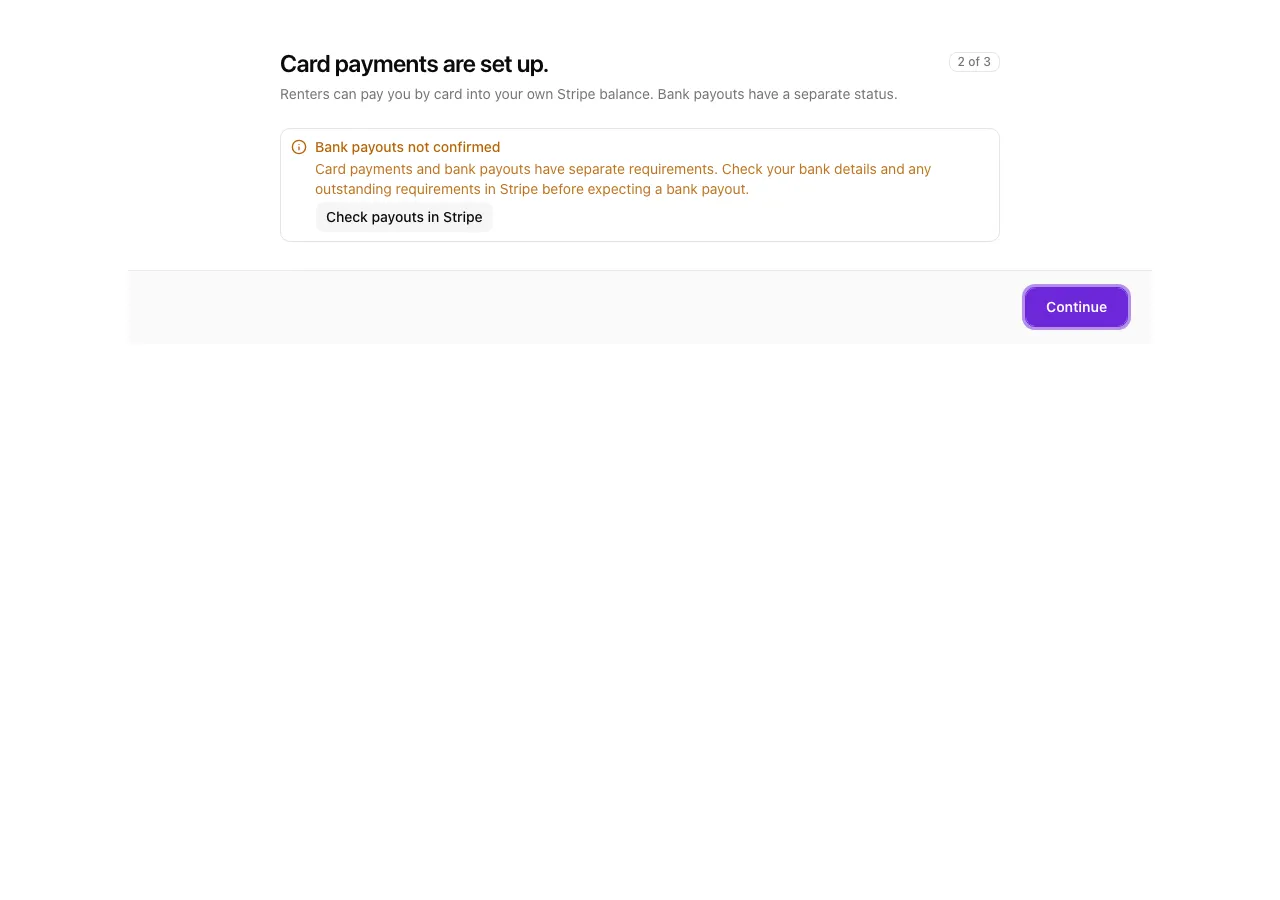
Card payments are set up means renters can pay into your Stripe balance. It does not mean a bank payout has been made or that Stripe has enabled bank payouts.
Check the separate Bank payouts message in setup and Settings → Connections:
- Bank payouts enabled: Stripe can pay your available balance to your bank on your payout schedule.
- Bank payouts not confirmed: choose Check payouts in Stripe to review your bank details, verification requirements and payout status. Return to Connections and choose Check status afterward.
Before you’re connected
Until your Stripe account is connected and ready, your booking site shows a notice that online payments aren’t set up yet. You can still take reservations and collect payment in person — connecting Stripe simply adds the option for customers to pay by card online.
Deposits and refunds
With Stripe connected, deposit holds at pickup and any refunds (for example, a cancellation) are processed through your connected account, alongside the rental charge. Your payouts and full transaction history live in your own Stripe dashboard.
Disconnecting stops new online payments. Existing deposits and refunds keep the Stripe account on which they were created; reconnecting does not move them to a different account. Saved cards cannot be transferred between Stripe accounts. If you connect a different account, use a payment link to collect a new payment rather than charging a card saved on the old account.
If access was revoked inside Stripe, reconnect before expecting RentalPilot to process payments. Existing deposits or refunds may need attention in the original account’s Stripe Dashboard. A payment whose original account cannot be established is left for review rather than sent to another account.
Having trouble connecting? Contact us and we’ll help you get set up.