
Choose your booking-site banner
Pick an offered photo of your area, check its photo credit, or upload your own banner during setup.
During setup, the screen that says your business is almost live shows Your banner below your booking site’s address. Select Change to see the photos offered for your area or use your own image. Choosing a banner is optional; you can continue setup without changing it.
The screenshots below use an example business and illustration previews. The current setup screen uses English labels.
Pick an offered photo
- Next to Your banner, select Change.
- Under Pick a photo of your area, select a thumbnail to use that photo. The current choice is highlighted.
- Open See your booking site from the setup preview to check the result.
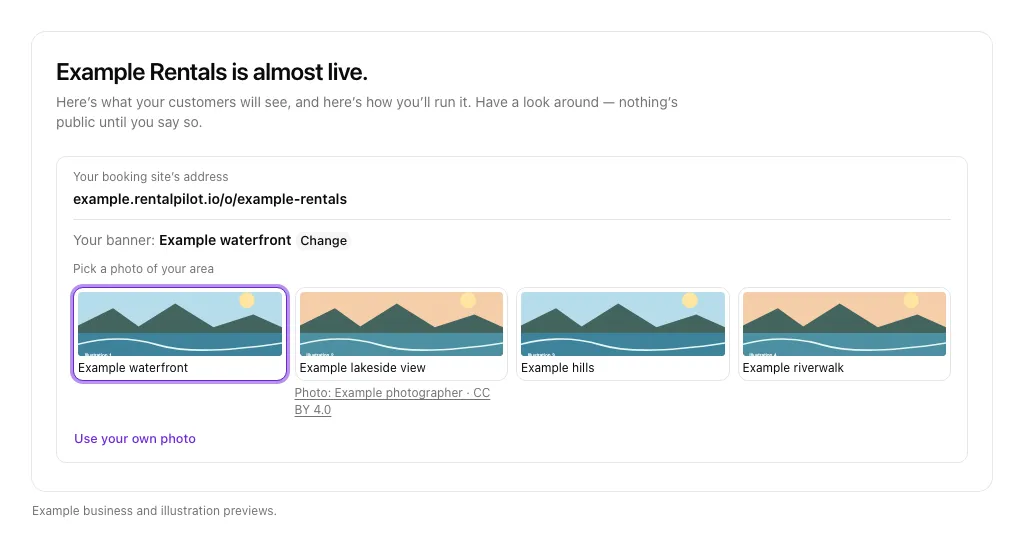
The offered area photos come from Wikimedia Commons. When a photo needs credit, a Photo: … link appears with its thumbnail, and the booking site carries the credit when that photo is displayed. Open the credit link to inspect the licence or source details. Some offered photos do not require a credit line.
Selecting an offered photo replaces your custom banner if you were using one. If you see Your banner photos changed meanwhile. Pick again., review the refreshed choices and select one again. If a photo cannot be used, try another option.
Use your own photo
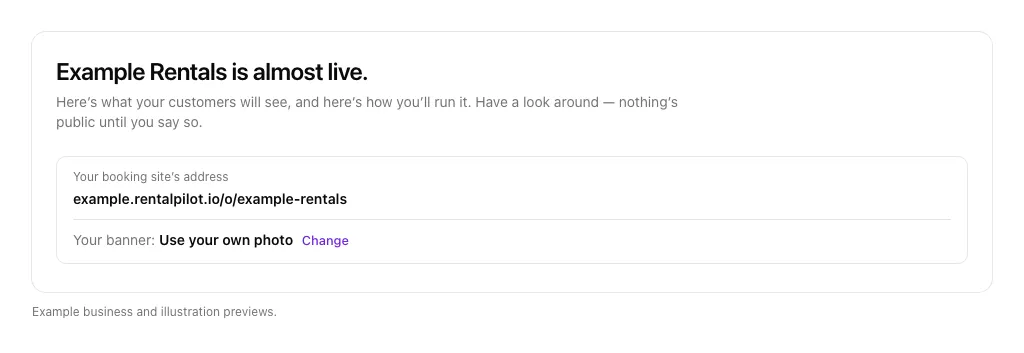
Select Change → Use your own photo, then choose an image from your device. After it is uploaded and saved, Your banner reads Use your own photo. Check the booking-site preview to see how it is cropped across the top of the page.
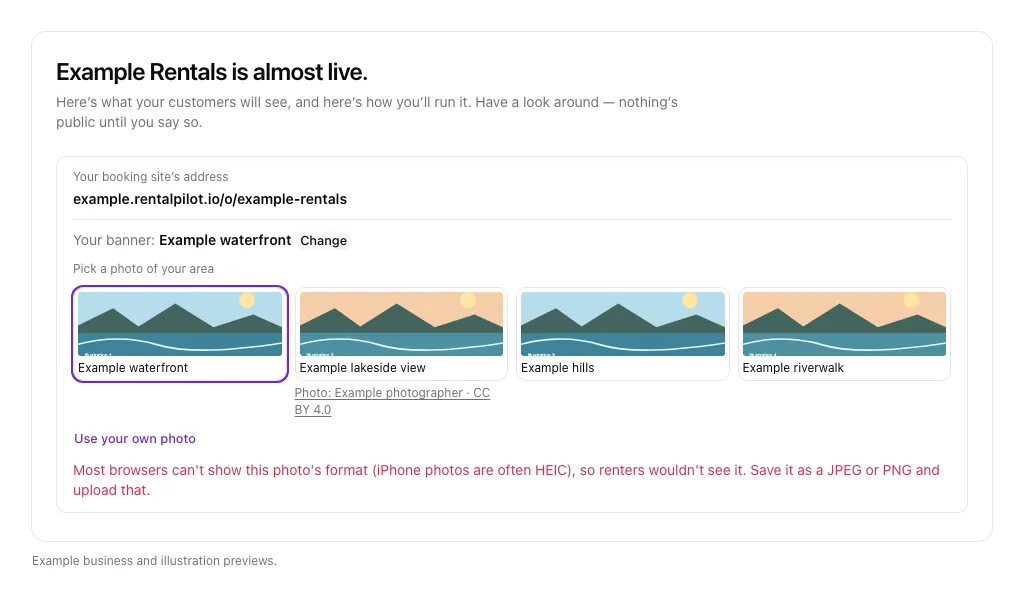
Choose a clear, wide photo that you have permission to publish. JPEG and PNG are straightforward choices. If your browser cannot display the format—for example, some iPhone HEIC photos—the screen asks you to save it as a JPEG or PNG and upload that version. If the screen refuses a file, follow its message and try again.
When there is no area photo
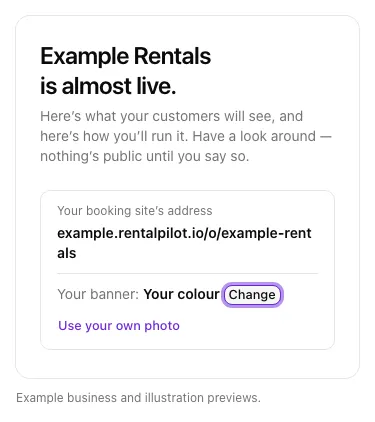
If no suitable photo is available and you have not uploaded your own, Your banner reads Your colour. The booking site uses your brand colour. You can leave it that way or select Change → Use your own photo; a photo is not required to finish setup.
For your headline, brand colour and other booking-site content, see Customize your booking site.