
Customize your booking site
Brand the page customers book through, add an About section in your own words, and preview the full saved renter home safely.
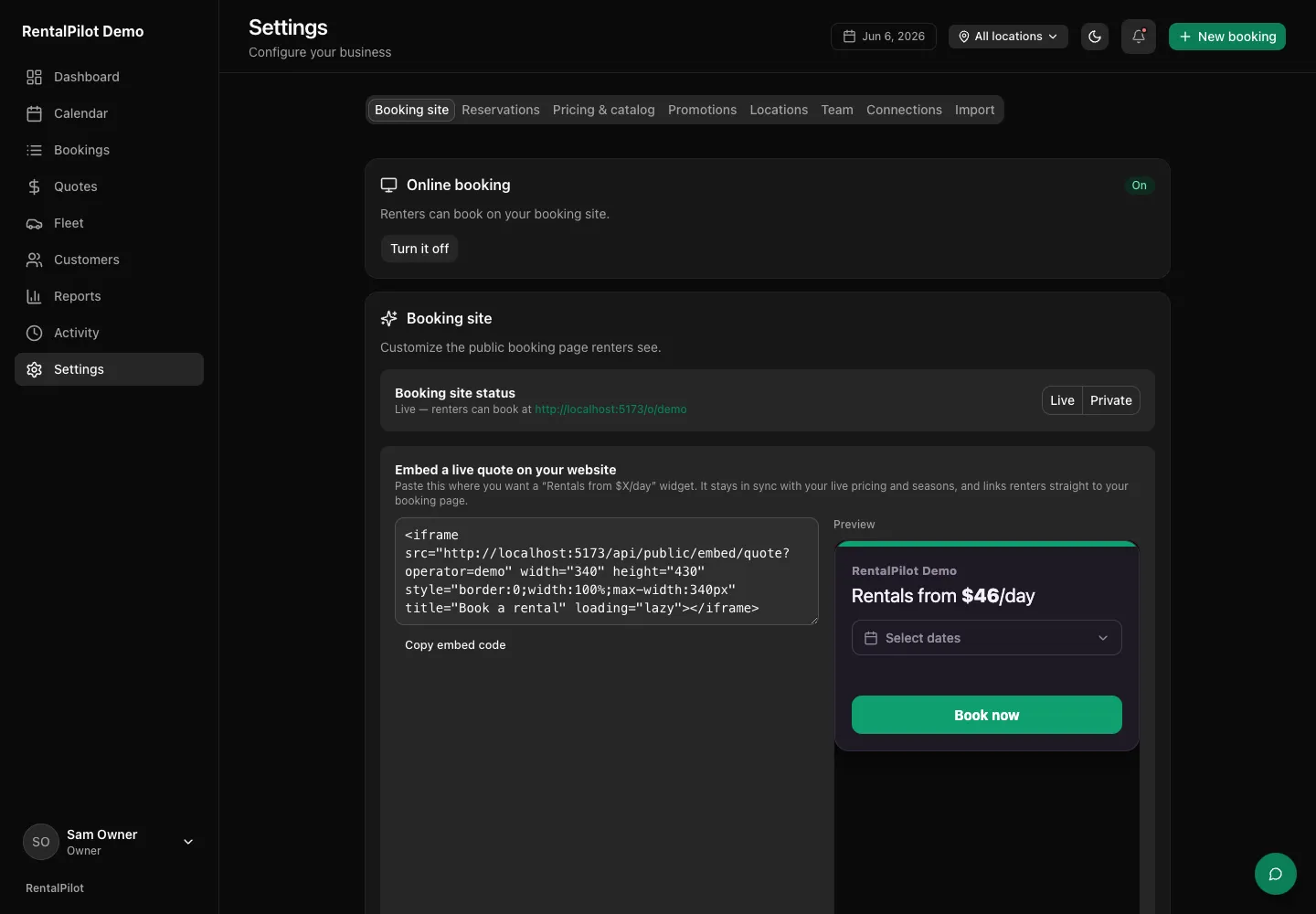
Your booking site is the public page customers use to book. You brand it in Settings → Booking site, with a live preview as you edit.
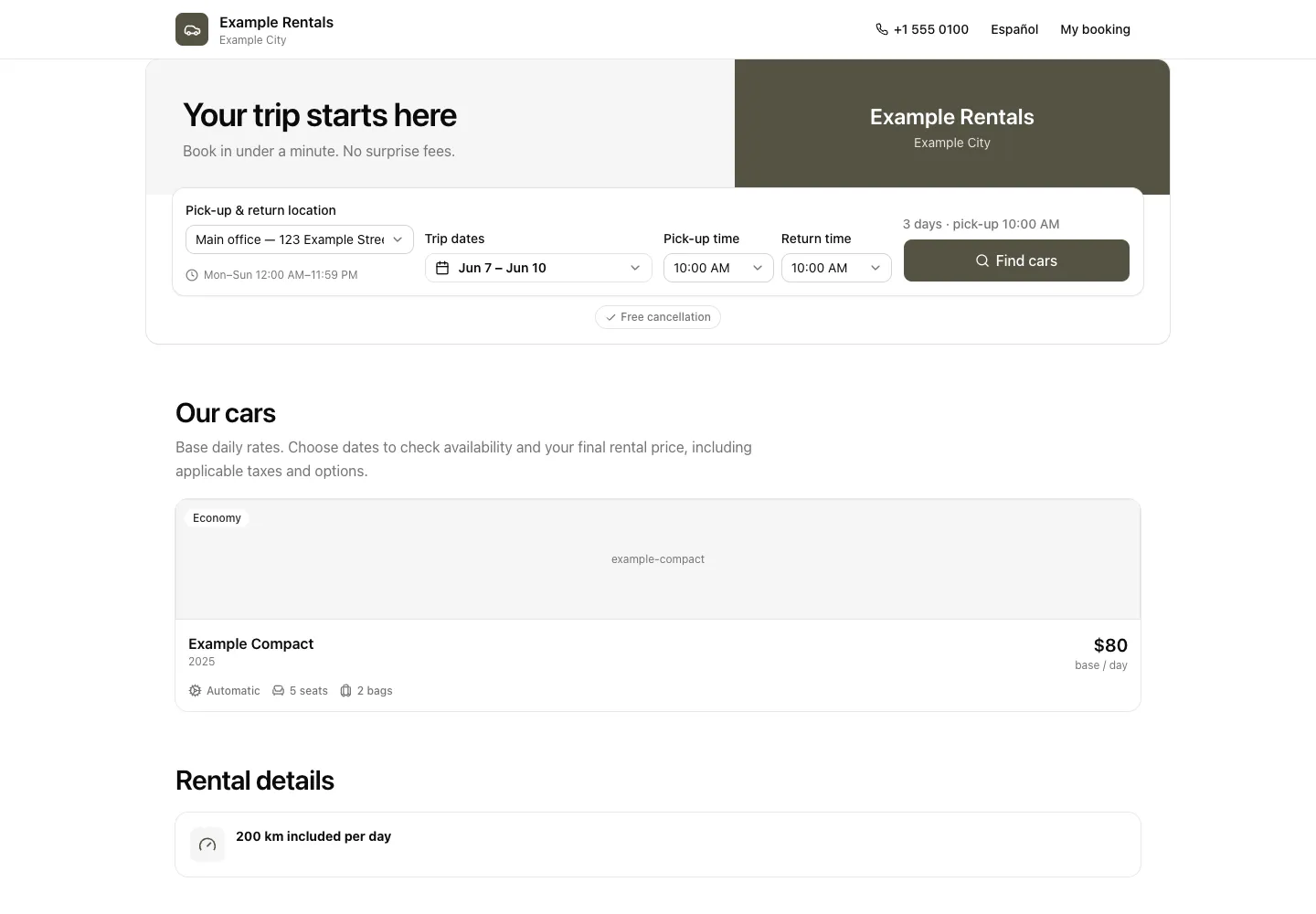
Branding
Your booking site is in English. If you saved Spanish copy before, it’s kept but not shown on your site. Set these for it:
- Hero image — the banner image at the top
- Headline and Subtitle — your welcome copy
During setup, you can choose an offered area photo or upload your own through Your banner → Change. See Choose your booking-site banner for the photo choices, credits and upload guidance.
And one brand colour that themes the whole booking flow, and your admin too: its buttons and the selected menu item. Warnings and statuses keep their usual colours, so an overdue booking always looks like one. Your logo and business name sit at the top of the admin menu.
The booking site adjusts the displayed brand shade and button-label colour when needed to keep buttons, links and icons readable. Light appearance uses light labels on darker buttons; dark appearance uses dark labels on lighter buttons. Button labels stay readable when you hover, too. Your saved colour stays the same.
Show your Google reviews
In Settings → Booking site, enter Your Google reviews link and select Save changes. Use an HTTPS link to your Google Maps place or reviews, such as https://www.google.com/maps/place/..., a Business Profile link such as https://g.page/r/.../review, or a Maps share link from maps.app.goo.gl or goo.gl/maps. Google review links under search.google.com/local/writereview or /local/reviews also work. A general Google search or redirect link is not accepted.
You can also enter Your star rating from 1 to 5, to one decimal place (for example, 4.8). This number is optional and is entered by you; RentalPilot does not fetch or synchronize the rating or review count from Google. Update it yourself when it changes, then save again.

After you save a valid link, customers see See our reviews on Google on your booking site. If you entered a rating, it appears beside that link. Clear the link and save to remove the reviews line; a rating on its own is not shown.
About your business
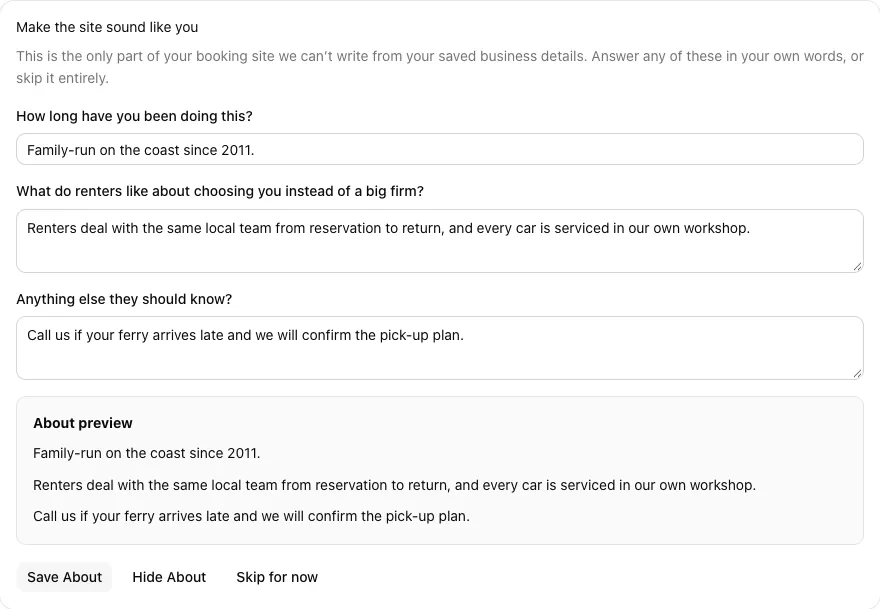
Use About your business to add factual details that help renters understand who they are booking with: how long you have operated, why renters choose you, and any practical detail they should know. Use Hide About when you want no About section on your site.
Saving About keeps your other booking-site content, including an appearance draft you have not saved yet. If a save fails, your answers stay in the editor so you can retry.
Preview the saved renter home
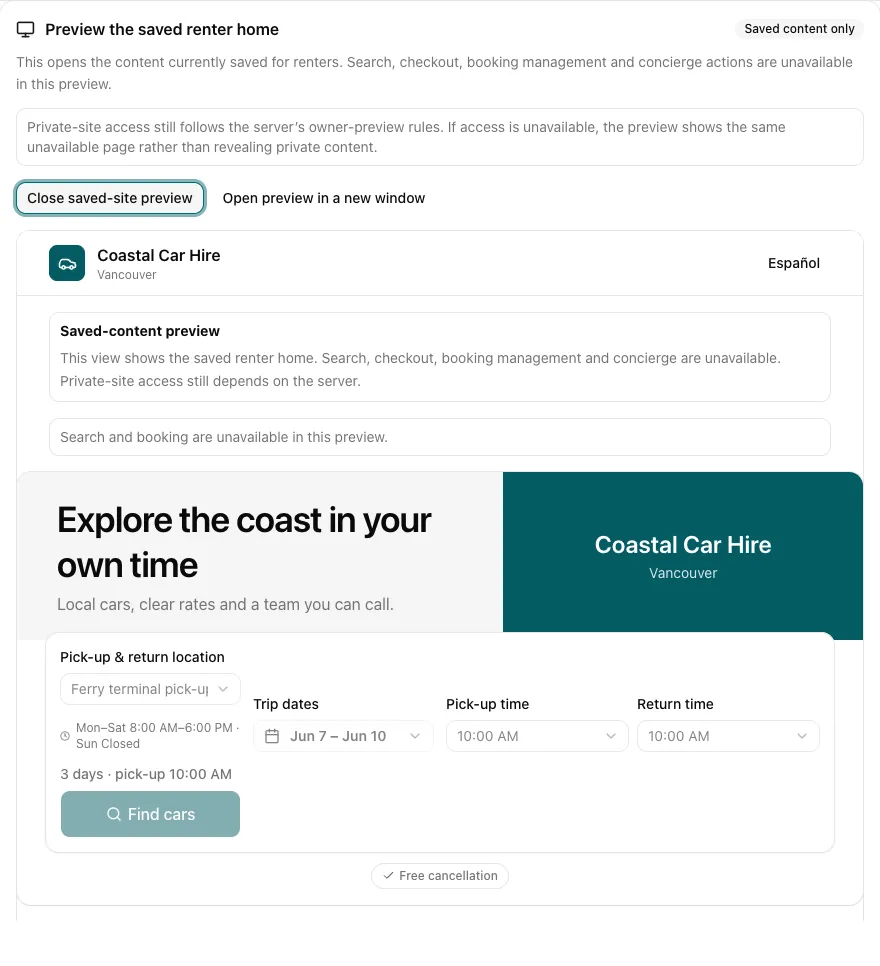
Select Open saved-site preview to inspect the full renter home with the branding, fleet, About text, locations and footer that are currently saved. The preview does not include unsaved edits.
Search, checkout, booking management and the concierge are unavailable in this view. The preview does not grant access to a private site: the server still decides whether the signed-in owner may see it, and otherwise shows the normal unavailable page. Use Open preview in a new window when you want more room.
Live or private
Use the Live / Private toggle to control whether customers can reach your booking site. While private, only you (signed in) can see it.
Your booking link
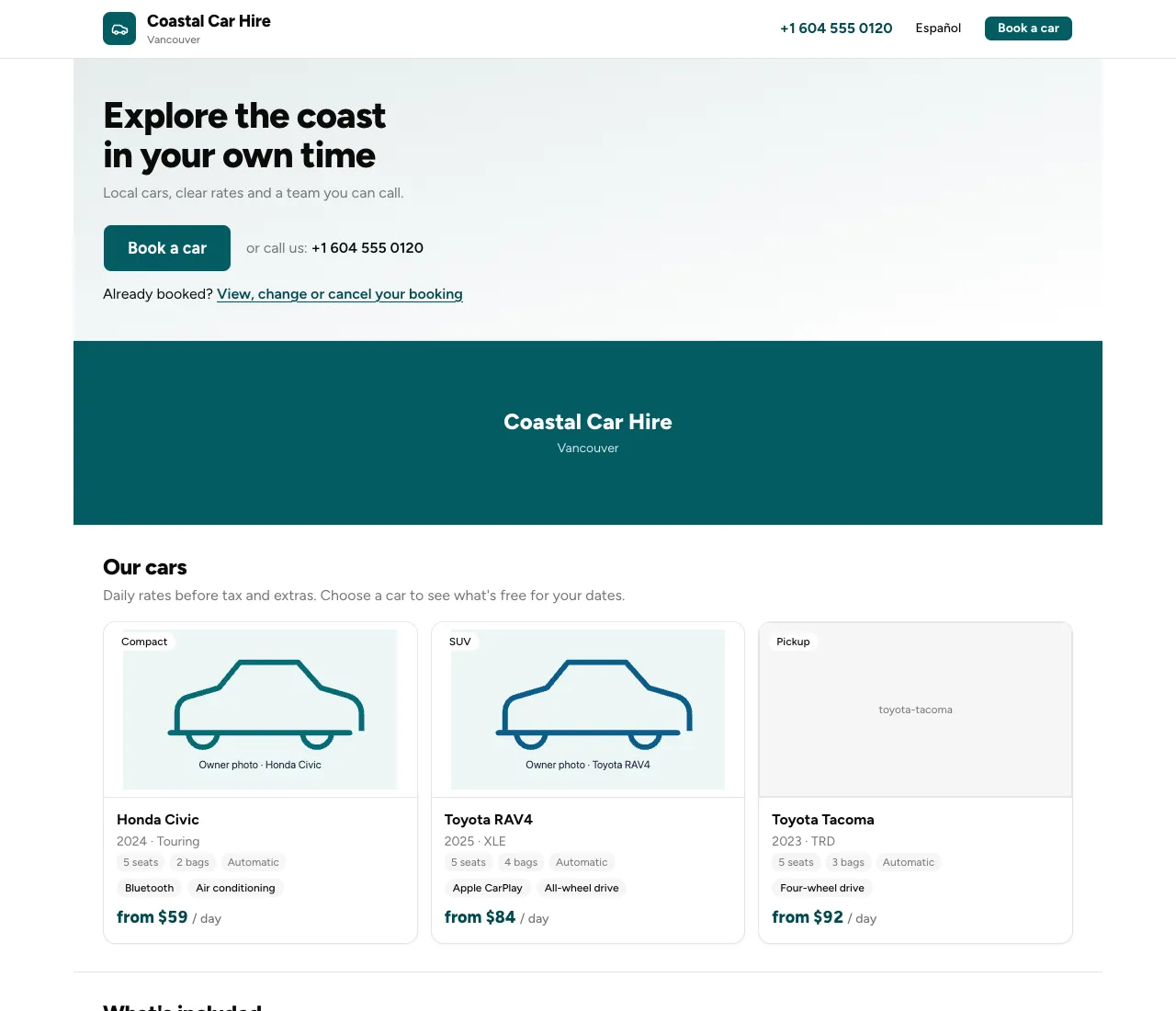
Your public booking site is at /o/your-business (shown on the Booking site tab). Share that ordinary link with customers, put it on your website, or add it to your social profiles. The saved-site preview link is for checking the page in Settings and should not be shared as your booking link.
Embed a live-quote widget
If your booking site is live, you’ll also see an embeddable quote widget. Copy the snippet and paste it onto your own website to show a “Rentals from $X/day” box that stays in sync with your live pricing and links straight to your booking page. See Embed a live quote on your website for the full how-to.
To choose how customers book and confirm, see Online booking options. To set the pick-up/drop-off points customers choose from, see Locations & pick-up points. Questions? Contact us.