
Import your data from a spreadsheet
Import your fleet from CSV or Excel during setup, or use the CSV importer in Settings. Review every row before saving.
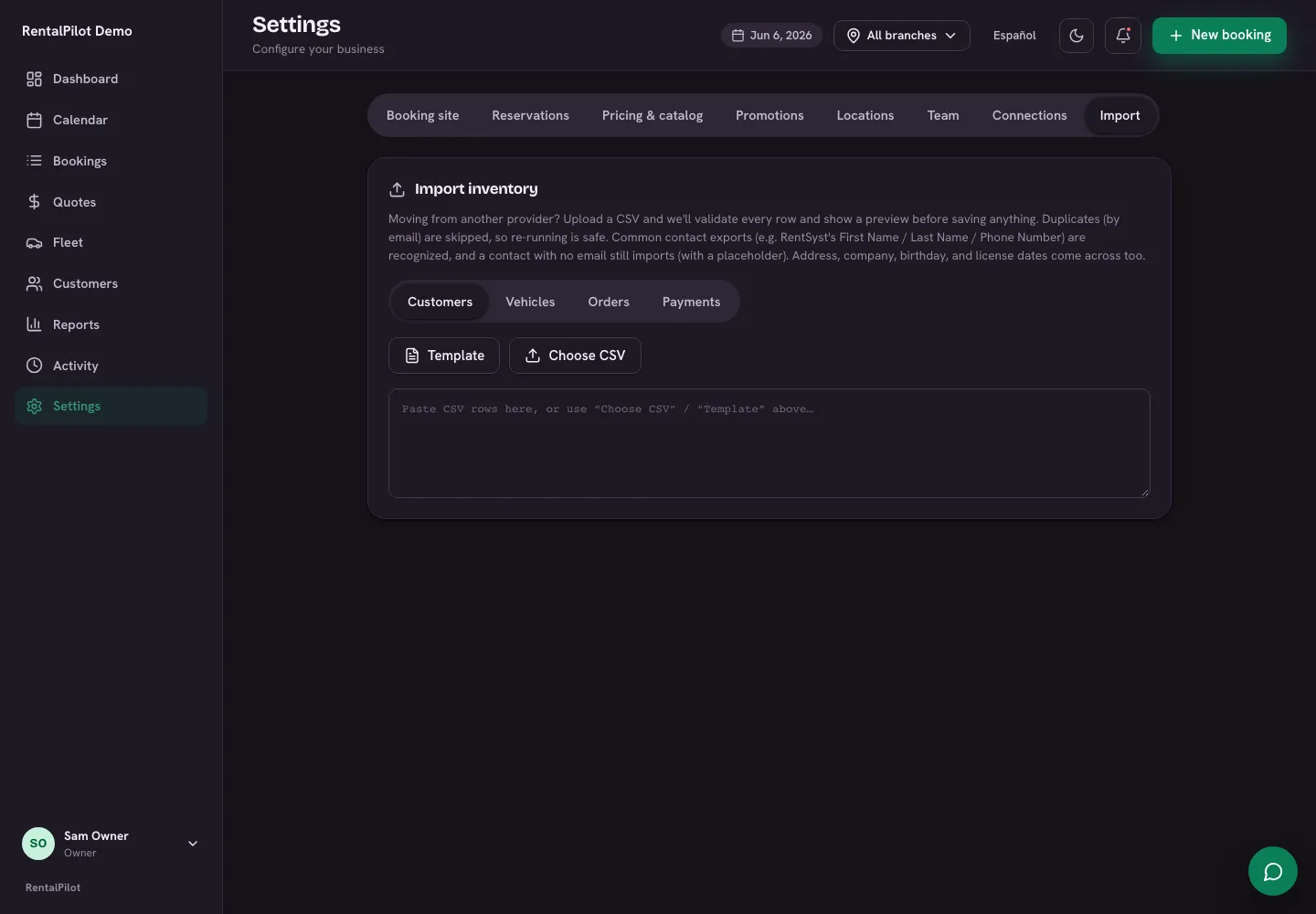
Moving from another system? You can bulk-import your customers and vehicles from a CSV in Settings → Import. Every row is validated and shown to you before anything is saved, and re-running an import is safe.
Import your fleet during business setup
The fleet step accepts CSV and Excel (.xlsx) files. Drop or choose your file and RentalPilot reads every sheet: current cars go into your car list, sold cars are set aside for you to confirm, and service or cost sheets are saved as each car’s history. Familiar columns match automatically. See Bring your fleet from a spreadsheet for how setup handles each sheet.
The cars land straight in setup’s editable car list, where you fix any missing rate, plate or year before choosing Finished adding cars. A VIN is optional; if your sheet has VINs, a car with no year takes its model year from its VIN, and a year you gave is never replaced. For .xls files, save a copy as .xlsx or CSV first. Files can be up to 5 MiB, with at most 100 columns and 5,000 rows including the header per sheet.
Store plates and other identifiers as text in Excel when leading zeroes matter: numeric display formatting alone is not imported. Formula cells use their saved results; if a result is missing, recalculate and save the workbook before importing.
See Complete your business setup for the rest of the onboarding flow. The Settings importer below continues to accept CSV files.
Customers and past rentals from setup files
Availability: automatic filing of setup contacts and past rentals is being prepared and is not enabled yet. Your saved source sheets remain available for review.
When this filing becomes available for a newly published business, supported customer sheets can add contacts to Customers, and completed past rentals can appear on a customer’s profile. This does not reread existing RentalPilot records with AI or run the optional account guide.
- A contact is matched by an unambiguous email address or full name and phone number. A name alone does not identify an existing person. Conflicting identities stay in the source for review; importing a contact does not grant marketing consent.
- Past rentals need a matched car, readable dates and unambiguous Total and Amount paid values. Missing, duplicate or ambiguous amount columns stay for review; they are not turned into free or paid rentals. Supplied tax, refund, deposit or fee details that cannot be mapped safely also stay for review. Explicit zero values are different from missing values. Amounts use your account currency; explicit currency conflicts stay for review and are never converted. Saved date interpretations are respected. Cancelled, void and no-show rows are excluded; unclear lifecycle statuses stay for review.
- Saved setup bookings are linked to their source rather than filed a second time. Existing booking and payment history is not rewritten. Imported history does not send a confirmation or reminder, charge a card, or create a new payment transaction.
Open Customers, then the customer’s name, to review their rental history. The contact is tagged imported and each new historical rental carries the note “From your spreadsheet, before RentalPilot”.
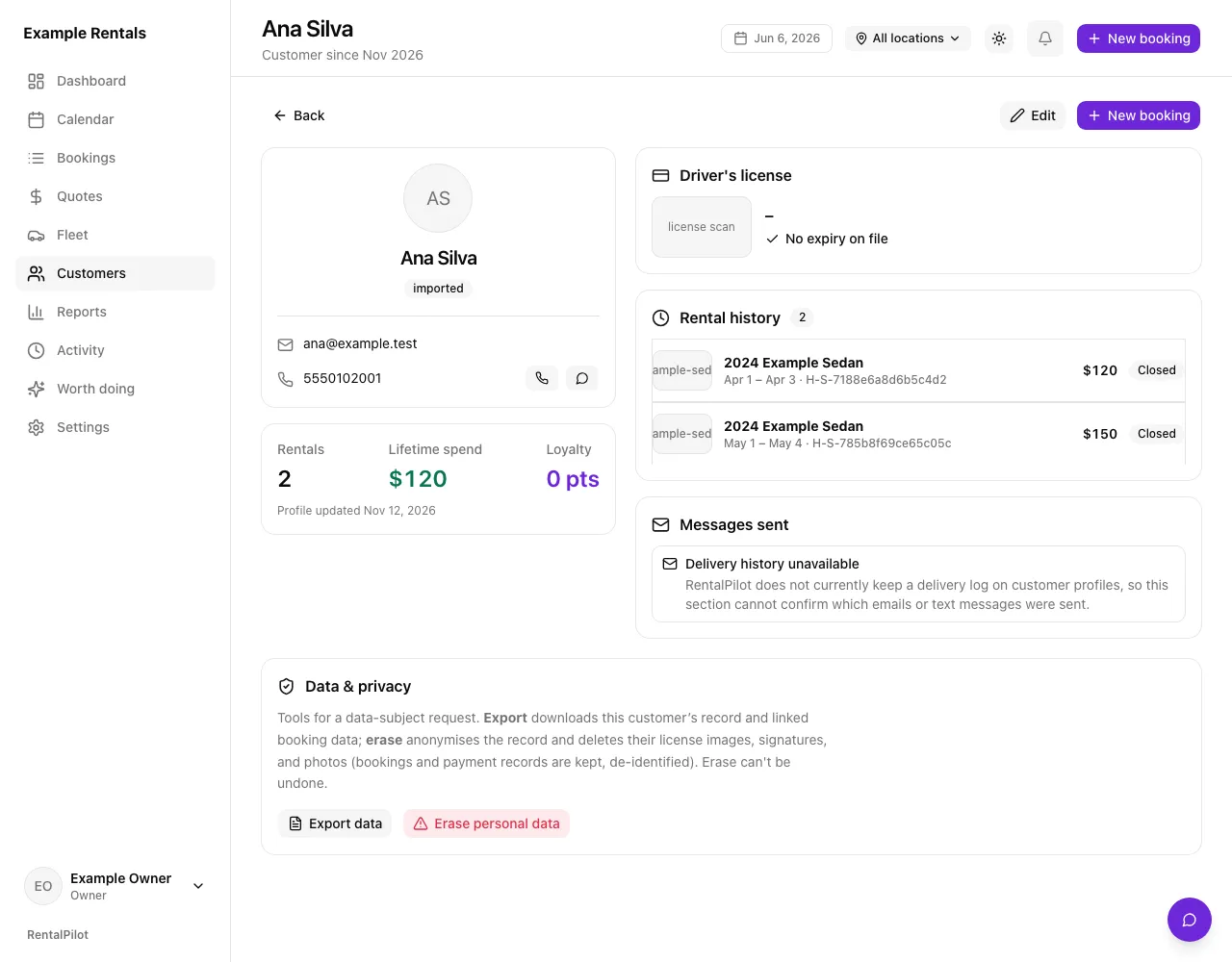
Filing does not remove the retained source sheets or complete a privacy request. Some rows may still need review, including unrelated unfiled history. See Review retained setup sources for privacy requests before providing an export or attempting erasure. The source-review block remains in place while selective cleanup is being completed.
Import customers or vehicles
- Open Settings → Import and choose Customers or Vehicles.
- Download the Template to see the expected columns, or paste your existing CSV (common provider exports are recognised automatically).
- Add your rows — use Choose CSV to upload a file, or paste into the box.
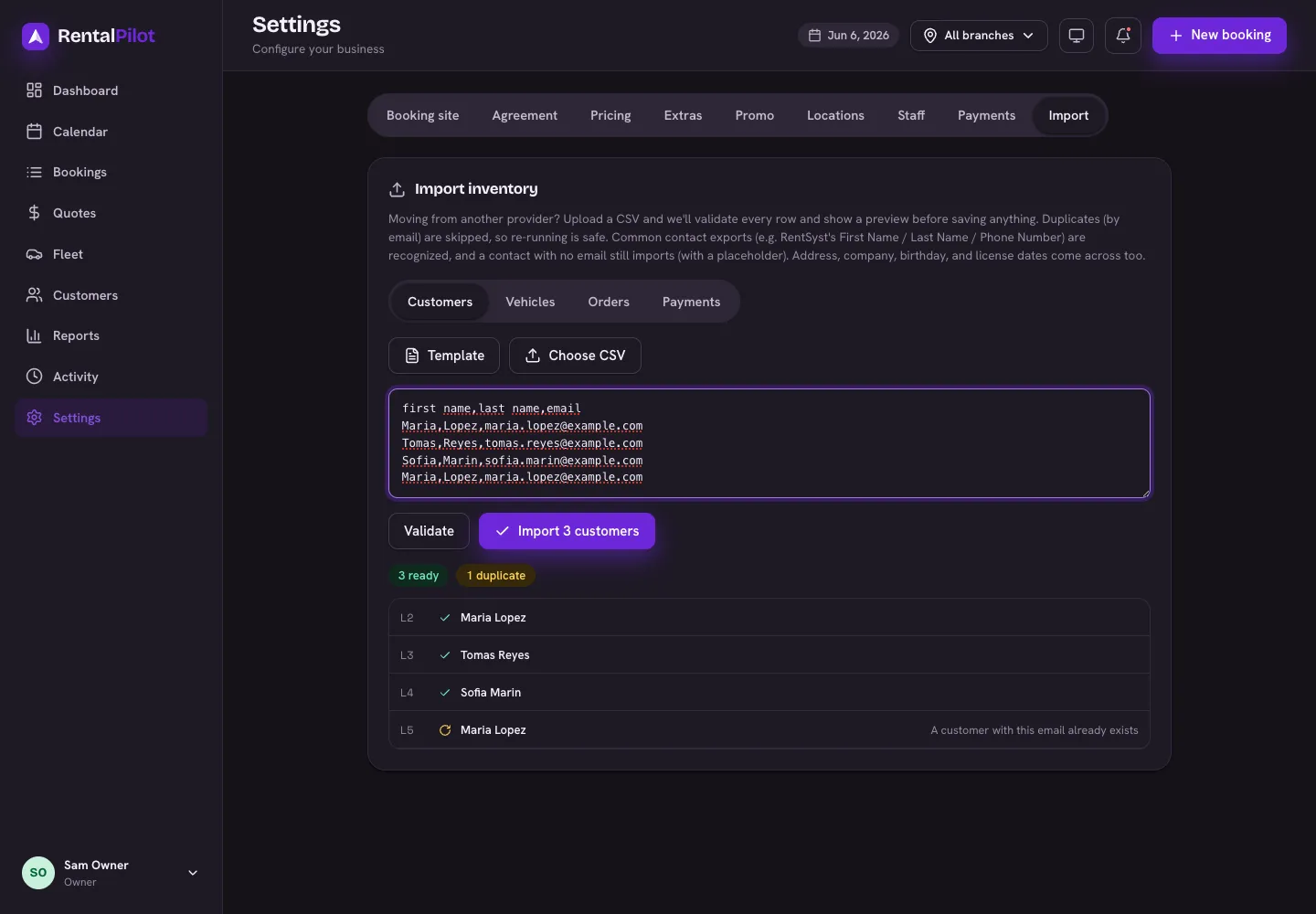
- Choose Validate. Each row is checked and marked ready, duplicate, or error, so you can fix problems before committing.
- Choose Import to save the rows that are ready.
Column suggestions in the Settings importer
If your file’s headers don’t match — a different provider, a spreadsheet a colleague built, or another language — choose Map columns with AI. RentalPilot reads your headers (and a few sample rows) and matches each one to the right import field, with a confidence for each. Adjust anything that looks off, then Apply — your file is re-mapped and runs through the same validation and preview, so nothing is saved until you’ve checked it.
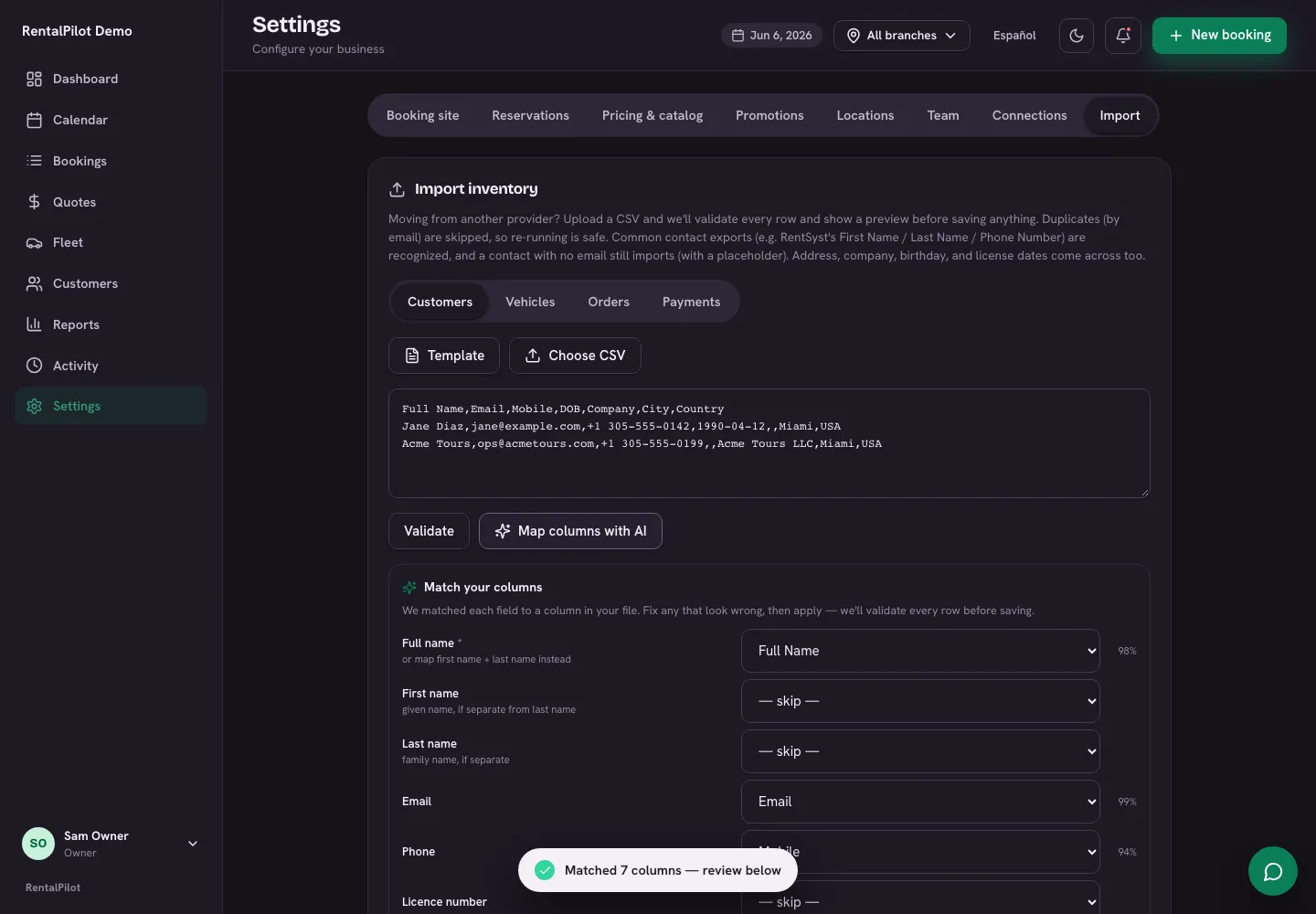
It’s a suggestion you review. Availability depends on your account and the configured AI service. Turn it on or off under Account → AI features.
What you can include
A minimal file works fine — for customers just name and email; for vehicles include make, model, category, plate and daily rate, plus year unless the sheet has VINs. If we can’t read a file, we say why and list the columns we need. You can bring more across if your export has it:
- Customers — as well as name, email and phone, you can map a mailing address, company name and tax/VAT number, date of birth, driver-license number, issue and expiry dates, and a group/segment tag. Columns we don’t recognise (or that are empty) are simply skipped.
- Vehicles — transmission, fuel, seats, bags, VIN, trim, colour and location.
How duplicates and new entries are handled
- Customers are de-duplicated by email, and vehicles by plate — both against what’s already in your account and within the file. So a contact or car that already exists is skipped, and re-running the same import won’t create duplicates.
- For vehicles, any new categories or locations in your file are created for you — and shown in the preview first, so you can catch a typo before committing.
- Vehicle imports respect your plan’s fleet limit; rows over the limit are flagged.
Import orders and payments
You can also import Orders and Payments to bring existing rentals and their payment history across. Import your fleet first so vehicles match by plate, then review the reservation dates and statuses before saving.
Saving an order import does not send a booking confirmation, charge a card, or ask the renter for card details. A payment import records money already collected by your previous provider; it does not collect that money again.
Need a hand with a migration? Contact us — we’re happy to help.