
Staff, roles & location access
Invite your team, choose what each person can do with owner/manager/staff roles, and limit a member to specific locations.
Add the people who work with you in Settings → Team. Each member gets their own login, a role that controls what they can do, and — if you run more than one location — an optional list of branches they’re limited to.
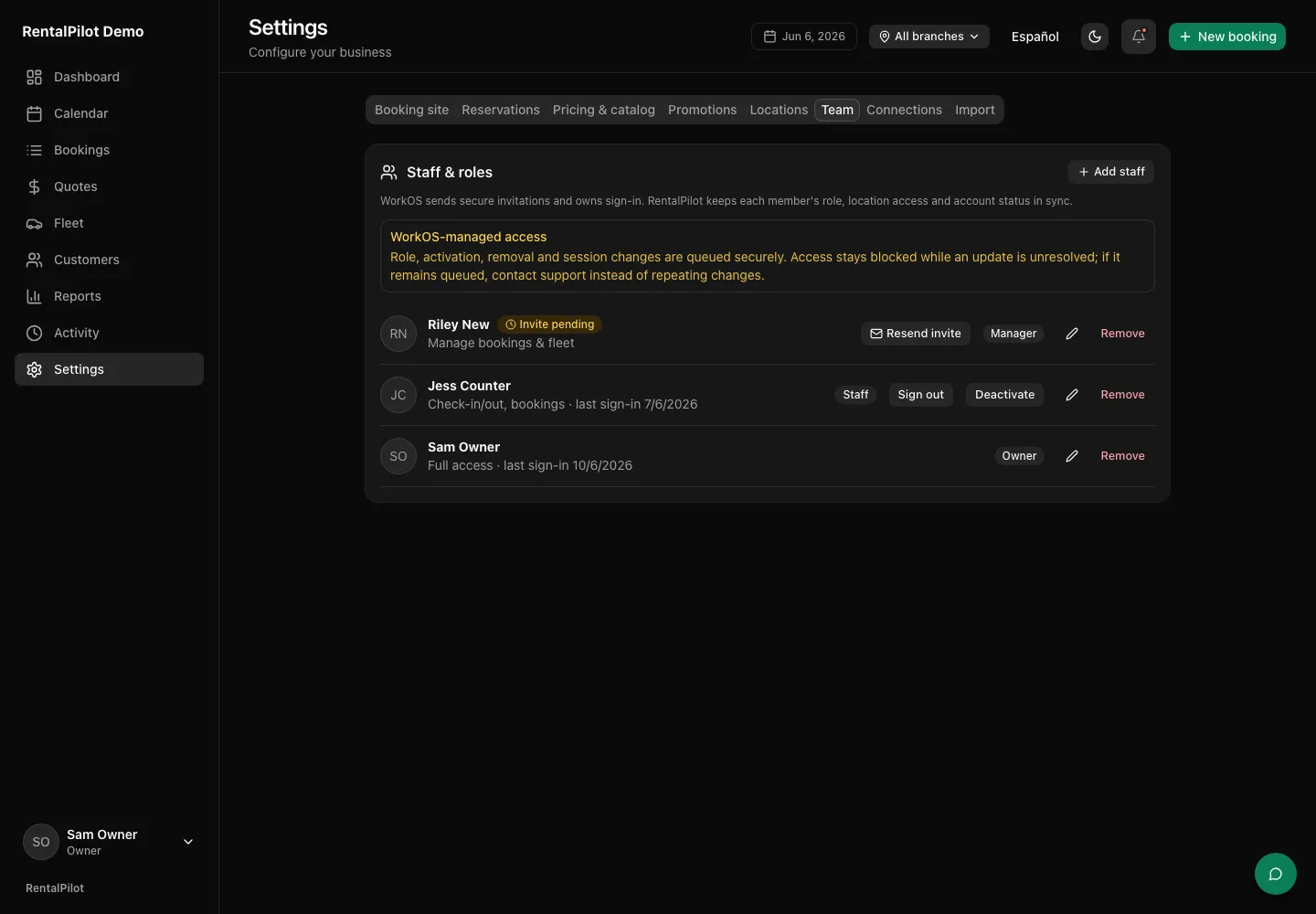
Invite a team member
- Go to Settings → Team and choose Add staff.
- Enter their name and email, pick a role, and (optionally) limit them to certain locations.
- Choose Add staff. RentalPilot securely queues the invitation and WorkOS emails it to the new member.
The new member shows an Invite pending badge until they accept the email invitation through WorkOS. Need the email again? Choose Resend invite on their row. If RentalPilot says no resend was attempted, wait and try again later. If it says the outcome is unknown, the email may already have been sent — check with the recipient or contact support before trying again.
Note: A member can’t sign in until they accept the exact invitation sent to their email address. RentalPilot never creates, stores or shows their password.
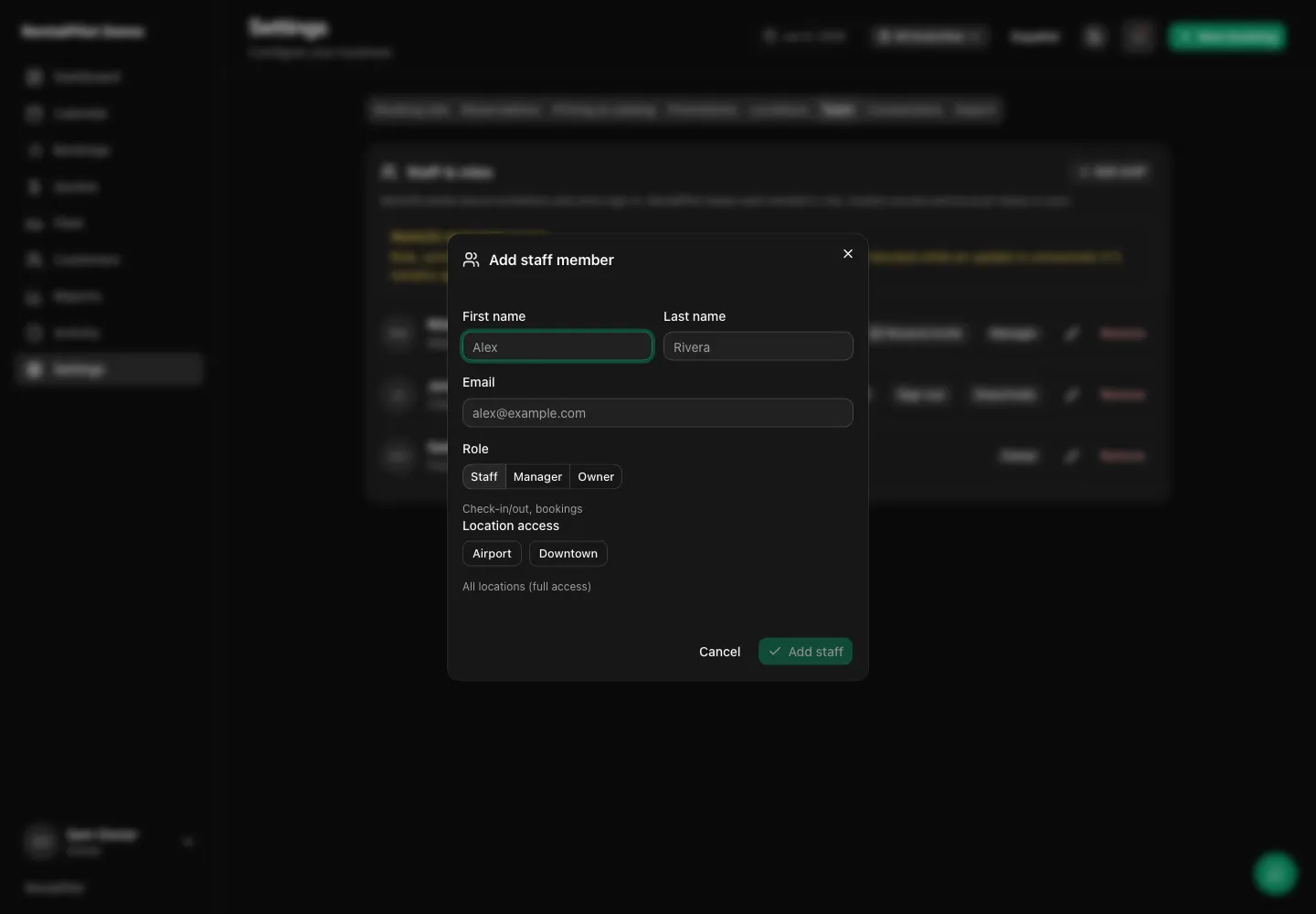
Roles: who can do what
Pick the role that matches how much someone should be able to do:
- Staff — Check-in/out, bookings. The day-to-day role: Calendar, Bookings, Quotes, Fleet and Customers. Staff can’t see Reports or Activity and can’t open Settings.
- Manager — Manage bookings & fleet. Everything Staff can do, plus Reports and the Activity log, and the Promotions, Locations and Import tabs in Settings.
- Owner — Full access. Everything, including the owner-only Settings tabs: Booking site, Reservations, Pricing & catalog, Team and Connections. Only an owner can invite staff, connect Stripe or change your plan.
You can have more than one owner. RentalPilot won’t let you remove or demote the last owner, so your account always has someone who can manage billing and the team.
Limit a member to certain locations
If you have more than one location, the Add/Edit staff form shows a Location access picker. Tap the branches a member should be limited to:
- Leave it empty → the member has access to all locations.
- Pick one or more → the member only sees and works with those branches.
Owners are never limited — they always see every location.
A member limited to certain branches sees only those branches’ bookings, fleet, calendar, reports and dashboard. They can’t open or change a booking at a branch they’re not assigned to. Two things stay shared for everyone, whatever their scope:
- Customers — your customer list and history is shared across the whole business.
- “Available everywhere” vehicles — a car with no location set (see Add & manage vehicles) shows up at every branch, so scoped members can use it too.
Location and name edits take effect in RentalPilot immediately. Role and lifecycle changes are stored as durable WorkOS operations, so their status survives a page reload. WorkOS update queued means the job is waiting or running; WorkOS retrying means RentalPilot will retry automatically. The member’s access stays blocked while either status is unresolved. WorkOS support required means automatic retries stopped: don’t make another access change, and contact support with the reference code shown on screen.
Manage your team
On each member’s row you can:
- Sign out — asks WorkOS to revoke their sessions and forces a fresh sign-in on every device. Use this if a device is lost or you’ve just changed their access.
- Deactivate — queues a WorkOS access block without deleting history or attribution; choose Reactivate to restore access.
- Remove — queues removal from the operator’s WorkOS directory and RentalPilot account.
Queued changes are deliberately fail-closed: the member can’t use RentalPilot while an invitation, role, activation, removal or session-revocation update is unresolved. Don’t repeat a different access change while a queued or retrying badge is visible. If support is required, contact support so the directory job can be reviewed safely.
Need a hand? Contact us.