
Online booking options
Understand category booking, auto-confirm or approve bookings first, and control the emails renters receive.
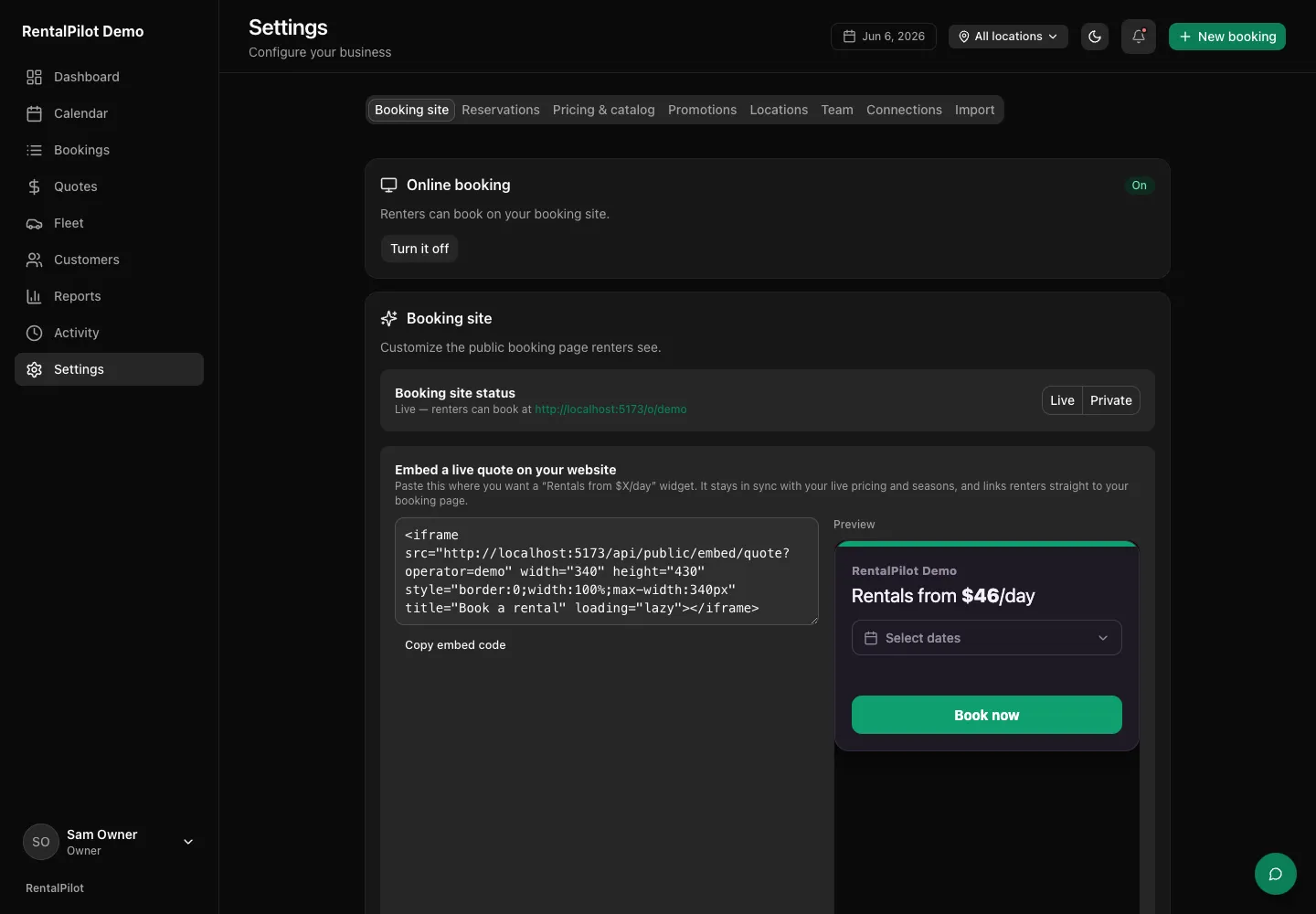
A few settings control how online bookings work. The booking mode lives on Settings → Booking site, auto-confirmation is on Settings → Reservations, and booking emails are on Settings → Connections.
Not taking bookings online
Some businesses never take bookings online: rentals for body shops and dealerships, weekly rentals to rideshare drivers, a few business accounts. You can go live without online booking. On Everything’s ready (the last check before going live), choose Change beside Online booking, then Don’t take online bookings for now.
You go live and pay for your plan as normal, but your booking site isn’t public: there’s no homepage and no booking pages. Anyone who opens your address sees that you don’t take bookings online, your phone number, and a link for renters who already have a booking. Bookings you enter still get their confirmation emails, the renter’s booking page and signing on their phone.
To start taking bookings online later, go to Settings → Booking site and choose Turn it on under Online booking. You’ll see your booking site as it is today and the list of what renters will see, each with a way to change it, then Turn on online booking. After that you get the same next steps as any business going live: links for your website, Google and QR codes. You can turn it off again from the same place.
Category booking
New business setups use By class: the customer reserves a category, with one base daily price per category, and you assign the specific car at pick-up. A category’s model and photo are examples, not a guarantee of that exact car. See Book a rental by category for the dates, choices, driver details and confirmation screens.
Where Settings → Booking site → Booking flow is available, an existing business may also retain By vehicle, which reserves a specific car. Existing bookings keep the terms they were made with.
(With class booking, assign a car from the booking’s detail page before check-out — see Change, extend or cancel a booking.)
Auto-confirm or approve first
Under Online booking confirmation:
- Auto-confirm — online bookings are confirmed instantly.
- Approve first — bookings arrive as pending for you to review and confirm.
When customers pay
Under Payment timing, choose when the renter pays online. A card is always saved on file, so you can always collect the balance later — these options only change when the money is taken:
- Full at booking — the whole rental total is charged when the customer books (the default).
- At pick-up — nothing is charged at booking; the full amount is paid later.
- Deposit + balance — a reservation deposit is charged at booking and the rest is paid later. Pick a percentage (e.g. 25%) or a fixed amount.
For both, the rest is collected when When the balance is paid says (see below): on the check-out screen for a balance due at pick-up, or on the check-in close-contract step for one due at return. Either way it’s Charge card on file (the saved card, one click) or Mark paid if the customer pays in cash or on your own terminal.
Because a card is saved on file, these options require your Stripe account to be connected — see Connect Stripe to get paid.
With At pick-up or Deposit + balance, When the balance is paid chooses At pick-up (collected at check-out) or At return (collected at check-in, on the close-contract step). Taking a return-due balance sooner from the booking page asks you to confirm, and the ledger notes it was collected early. Renters see which at checkout and in their confirmation email, and each booking keeps the answer it was made with.
Late cancellations and no-shows
Late cancellation or no-show sets one fee for both:
- The window: how close to pick-up the fee applies. It starts at 48 hours and can be any whole number from 1 to 720, counted back from the pick-up time on the branch’s clock.
- The fee: one day’s rental, two days’ rental, the whole booking or a set amount. Settings also offers What they paid (nothing more), the rule from before this setting existed.
Renters see the rule before they pay, and each booking keeps the rule it was made under. A renter who cancels late online gets back what they paid less the fee. When you mark a no-show (possible once pick-up and any grace have passed), you’re shown what will be kept and refunded before you confirm; the fee is kept from what they paid online and the rest refunded; charging their card for more is your call (for example by adding it as an extra charge and sending a pay link — see Change, extend or cancel a booking). A booking made inside the window can be cancelled free for an hour after it’s made. If your site was already live before this setting existed, it starts at 24 hours and What they paid (nothing more), which is the rule your renters already had, until you change it. See What your customers can do themselves.
Require proof of insurance
Turn on Require proof of insurance (on Settings → Reservations) if renters must show their own auto coverage before they drive. When it’s on, checkout asks the renter to upload a photo or PDF of their insurance — they can’t pay until they do — and the document is saved privately to the booking.
Review it any time from the booking’s detail page under Insurance proof → View. It’s stored securely and visible only to your team. Leave the setting off (the default) if you don’t need it.
Minimum rental length
Set the fewest days a customer can book online in Settings → Reservations → Minimum rental length. Leave it at 1 for no minimum (the default).
Raise it and the booking site shows the minimum under the trip dates, and a customer can’t search or book a shorter stay — a 7-day minimum, for example, turns a weekly-priced fleet into a true weekly package. The minimum applies to your whole booking site (not per vehicle), and you can still create shorter bookings yourself from the admin.
Long-term (monthly) rentals
The Long-term rentals toggle lets you offer weekly or monthly rentals billed in installments, with the discount earned by staying. It has its own guide — see Long-term & monthly rentals.
Booking emails
The Booking emails toggle controls whether renters get an automatic confirmation when they book and a notice when a booking is cancelled. When on, you can set a reply-to address so customer replies land in your inbox.
The renter’s confirmation always shows its saved booking reference. An email confirmation or reminder is mentioned only when booking emails are enabled; automatic SMS delivery is not promised. The online flow asks for the booking contact’s details and a young-driver count when applicable, while the business verifies every driver’s licence and eligibility at pick-up.
To brand the site itself, see Customize your booking site. Questions? Contact us.